Lenovo X1 Carbon FCC Unlock of EM7455 under Ubuntu 22.04

I recently upgraded my Lenovo X1 Carbon (5th gen) from Ubuntu 20.04 to 22.04 and my 4G connection stopped working.

I travel a lot and one of the great features of the Lenovo X1 Carbon is the (optional) 4G/LTE modem which I use with an additional data-sim of my provider (Vodafone NL).

After not really wanting to fix it (time constraints) I put some time in it and searching around a bit I found the solution for my problem.

It has has to do with the Sierra Wireless EM7455 modem and an updated version of ModemManager in Ubuntu 22.04. The modem is locked by default and has to be unlocked by sending a ‘magic’ combination of commands.

The logs would show the following line:

<warn>  [modem0] couldn't enable interface: 'Invalid transition'

Links

Before jumping to the solution, let me first share a few links which I used to diagnose and resolve the problem:

The solution

For in-depth details of the root-cause of the problem I recommend reading the modemmanager’s website, but in the end you need to run these commands:

sudo ln -s /etc/ModemManager/fcc-unlock.d /usr/share/ModemManager/fcc-unlock.available.d/1199:9079
sudo apt -y install libqmi-utils
sudo systemctl restart ModemManager

Now keep in mind that this solution only works if you have a Sierra Wireless EM7455 modem. You can check this with the output of the lsusb command.

Bus 004 Device 001: ID 1d6b:0003 Linux Foundation 3.0 root hub
Bus 003 Device 002: ID 1050:0407 Yubico.com Yubikey 4/5 OTP+U2F+CCID
Bus 003 Device 001: ID 1d6b:0002 Linux Foundation 2.0 root hub
Bus 002 Device 001: ID 1d6b:0003 Linux Foundation 3.0 root hub
Bus 001 Device 005: ID 138a:0097 Validity Sensors, Inc. 
Bus 001 Device 004: ID 13d3:5682 IMC Networks SunplusIT Integrated Camera
Bus 001 Device 003: ID 8087:0a2b Intel Corp. Bluetooth wireless interface
Bus 001 Device 019: ID 1199:9079 Sierra Wireless, Inc. EM7455
Bus 001 Device 001: ID 1d6b:0002 Linux Foundation 2.0 root hub

After creating the right symlink to unlock my Modem I was able to connect to the Vodafone network again and no longer had to use my phone’s wireless hotspot!

IPv6

wido@wido-laptop:~$ sudo ip addr show dev wwan0
12: wwan0: <BROADCAST,MULTICAST,NOARP,UP,LOWER_UP> mtu 1500 qdisc fq_codel state UNKNOWN group default qlen 1000
    link/ether fa:73:bc:24:0f:24 brd ff:ff:ff:ff:ff:ff
    inet 100.71.255.77/30 brd 100.71.255.79 scope global noprefixroute wwan0
       valid_lft forever preferred_lft forever
wido@wido-laptop:~$ 

Unfortunately Vodafone still (Jan 2023) does not support IPv6 on their 4G network. It’s coming I’ve heard….
Proxmox with BGP+EVPN+VXLAN

Proxmox by default does not support BGP+EVPN+VXLAN but there is a small piece of documentation on the Wiki of Proxmox.

Using the routing daemon Frrouting a Proxmox cluster can also be configured to use BGP with EVPN+VXLAN for it’s routing allowing for very flexible networks.

I won’t go into all the details of Frr, BGP, EVPN and VXLAN as the internet already more then enough resources about this. I’ll get right to it.

Frrouting

After installing Proxmox (7.1) on the node I temporarily connected the node via a ad-hoc connection to the internet to be able to install Frr.

curl -s https://deb.frrouting.org/frr/keys.asc | sudo apt-key add -
echo deb https://deb.frrouting.org/frr bullseye frr-7 | sudo tee -a /etc/apt/sources.list.d/frr.list
apt install frr frr-pythontools

After installing Frr I configured the /etc/frr/frr.conf config file:

frr version 7.5.1
frr defaults traditional
hostname infra-72-45-36
log syslog informational
no ip forwarding
no ipv6 forwarding
service integrated-vtysh-config
!
interface enp101s0f0np0
  no ipv6 nd suppress-ra
!
interface enp101s0f1np1
  no ipv6 nd suppress-ra
!
interface lo
  ip address 10.255.254.5/32
  ipv6 address 2a05:1500:xxx:xx::5/128
!
router bgp 4200400036
  bgp router-id 10.255.254.5
  no bgp ebgp-requires-policy
  no bgp default ipv4-unicast
  no bgp network import-check
  neighbor core peer-group
  neighbor core remote-as external
  neighbor core ebgp-multihop 255
  neighbor enp101s0f0np0 interface peer-group core
  neighbor enp101s0f1np1 interface peer-group core
  !
  address-family ipv4 unicast
    redistribute connected
    neighbor core activate
    exit-address-family
  !
  address-family ipv6 unicast
    redistribute connected
    neighbor core activate
    exit-address-family
  !
  address-family l2vpn evpn
    neighbor core activate
    advertise-all-vni
    exit-address-family
  !
line vty
!

In this case the host will be connecting to two Cumulus Linux routers using BGP Unnumbered.

The interfaces enp101s0f0np0 and enp101s0f1np1 are the uplinks of this node the the two routers.

/etc/network/interfaces

Now we need to make sure the /etc/network/interface file is populated with the proper information.

auto lo
iface lo inet loopback

auto enp101s0f1np1
iface enp101s0f1np1 inet manual
mtu 9216

auto enp101s0f0np0
iface enp101s0f0np0 inet manual
mtu 9216

This makes sure the interfaces (Mellanox ConnectX-5 2x25Gb SFP28) interfaces are online and running with an MTUof 9216.

The MTU of 9216 is needed so I can transport traffic with an MTU of 9000 within my VXLAN packets. VXLAN has an overhead of 50 bytes. So to transport an Ethernet packet of 1500 bytes you need to make sure you have at least an MTU of 1550 on your VXLAN underlay network.

VXLAN bridges

I now created a bunch of devices in the interfaces file:

auto vxlan201
iface vxlan201 inet static
    mtu 1500
    pre-up ip link add vxlan201 type vxlan id 201 dstport 4789 local 10.255.254.5 nolearning
    up ip link set vxlan201 up
    down ip link set vxlan201 down
    post-down ip link del vxlan201

auto vmbr201
iface vmbr201 inet manual
    bridge_ports vxlan201
    bridge-stp off
    bridge-fd 0

auto vxlan202
iface vxlan202 inet static
    mtu 1500
    pre-up ip link add vxlan202 type vxlan id 202 dstport 4789 local 10.255.254.5 nolearning
    up ip link set vxlan202 up
    down ip link set vxlan202 down
    post-down ip link del vxlan202

auto vmbr202
iface vmbr202 inet manual
    address 192.168.202.36/24
    bridge_ports vxlan202
    bridge-stp off
    bridge-fd 0

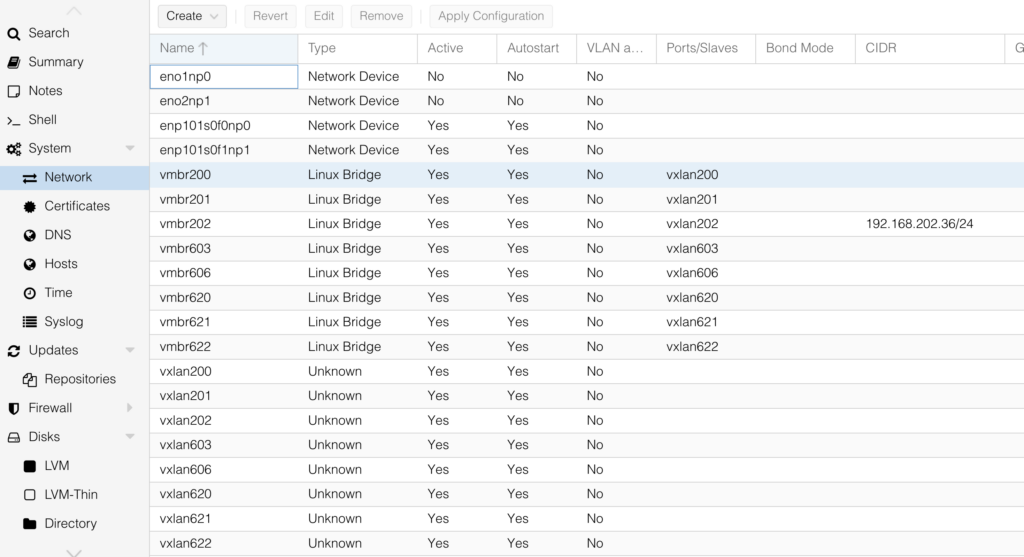
I created vmbr201 and vmbr202 which correspond to VNI 201 and 202 on the network. These can now be used with Proxmox to connect VMs to.

The IP-Address (10.255.254.5) set at the local argument of the ip command is the IP-address connected to the loopback interface and advertised using BGP.

This will be the address used for the VTEP in EVPN/VXLAN communication.

In reality however I have much more bridges

  • vmbr200
  • vmbr201
  • vmbr202
  • vmbr601
  • vmbr602
  • vmbr603
  • vmbr604
Overview of interfaces in Proxmox

Proxmox cluster network

To be able to create a cluster with Proxmox you need a Layer2 network between the hosts where corosync can be used for cluster communication.

In this case I’m using vmbr202 which has IP-address 192.168.202.36/24 on this node. Other nodes in the cluster have a IPv4 address in the same network and allows them to communicate with the others.

Using fail2ban to block unauthorized calls to CloudStack API

Apache CloudStack does not have a build-in mechanism to rate-limit failed authentication attemps on the API. This potentially allows an attacker to brute-force credentials and gain access.

The api.allowed.source.cidr.list configuration option in CloudStack can be used to globally or on an account level limit the source IPs where the API allows requests from. This is always good to do (if possible), but it does not cover every use-case.

Sometimes you just want to keep malicious traffic outside the door and fail2ban can help there.

Nginx proxy in front of CloudStack

A common use-case is that the Management server of Apache CloudStack is not directly connected to the network, but placed behind a reverse proxy like Nginx or something similar.

This proxy can then also handle SSL termination.

In this example we’re using Nginx as a proxy.

fail2ban

Using fail2ban we can scan the access logs of Nginx and block IP addresses who are abusing our API. In this case we filter on two HTTP status codes:

  • 401
  • 531

This results in that we create the following files:

  • /etc/fail2ban/jail.d/nginx-401.conf
  • /etc/fail2ban/jail.d/nginx-531.conf
  • /etc/fail2ban/filter.d/nginx-401.conf
  • /etc/fail2ban/filter.d/nginx-531.conf

jail.d/nginx-401.conf

[nginx-401]
enabled = true
port = http,https
filter = nginx-401
action = iptables-allports
logpath = %(nginx_access_log)s
bantime = 3600
findtime = 600
maxretry = 25
ignoreip = 127.0.0.1/8

filter.d/nginx-401.conf

[Definition]
failregex = ^ -."(GET|POST|HEAD).HTTP.*" 401
ignoreregex =

Change 401 to 531 where needed to also block HTTP codes 531.

iptables

The action taken by fail2bain is iptables-allports which causes iptables to block all traffic from the particular source IP when it is being banned.